

Challenge #11
Block Harmful Email Attachments
Activate the Common Attachment Types Filter in Microsoft 365 to prevent known malicious file types from compromising your system. Strengthen your first line of defense against email threats.

Why?
Since its inception in the early 1970s by Ray Tomlinson, who developed the first system resembling modern email on the ARPANET, email has evolved into a cornerstone of our digital communication. Today, it’s not just a tool for information exchange; it’s also a common entry point for cyber threats (yes, even after decades of use). This historical evolution underscores the importance of adapting our email security to contemporary challenges.
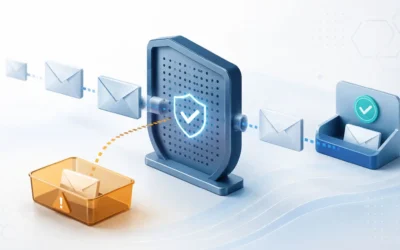
Implementing the Common Attachment Types Filter in Microsoft 365 is a critical step in this adaptation. Acting as a digital gatekeeper, this filter preemptively blocks attachments with known malicious file types, effectively stopping potential threats before they even reach our inboxes.
By employing this filter, we’re doing more than just blocking specific hazardous files; we’re enhancing our entire email security system. It seamlessly integrates into our existing email setup, boosting our defenses without disrupting our daily operations. This proactive measure is key to maintaining a secure, resilient digital workspace, ensuring that our business communications remain protected from malicious intrusions.
How?
Ensuring your Microsoft Teams meetings are shielded from anonymous access involves a few key steps.
Step 1: Go to the Microsoft Defender Admin Center
On your computer, launch a new browser window (Edge, Chrome), and type in https://security.microsoft.com/ and press enter.
Note: You will require Microsoft 365 administrative credentials – be sure to have the username and password ready.
Step 2: Access Email & Collaboration Policies
Within the Microsoft Defender Admin Center:
- Look for and select Email & Collaboration on the left-hand menu
- Under Email & Collaboration select Policies & rules
- Now select Threat policies
Step 3: Configure Anti-Malware Settings
- Within the Threat policies window, select Anti-malware option under policies
- Now select the Default policy
Step 4: Enable the Attachments Filter
- Within the Default policy window, scroll down and select Edit protection settings
- Now we want to scroll back up until we see Protection Settings at the top
- Just below Protection Settings, we want to check the box to Enable the common attachments filter
- By default, several attachments are already included. You can view the current file types that are included by clicking Select file types
- Within this window, you can choose to add more file types (by simply typing the file type extension without a preceeding period, such as “test”), or
- You can also choose to exclude any file type extensions that may be critical to your business operations.
- Once you are satisfied with the selections, click Done.
- Back in the main window, you can now click Save.
While you’re here…

Someone in your business is already using AI. What should you check?
Shadow AI is employees using AI tools, such as chatbots, meeting assistants, or browser add-ons, that the business hasn't reviewed or approved. To find it, ask staff to walk you through a recent task, have IT review sign-in records and the permissions connected tools...

How to Evaluate an IT Provider’s Performance: What We Measure and Why
A well-run IT provider tracks a small set of measures with named owners and reviews them regularly. Five worth asking about: customer satisfaction (CSAT), SLA performance, Microsoft Secure Score, team utilization, and employee sentiment (eNPS). The key question to...
Why Legitimate Emails Get Blocked, and What to Do About It
Legitimate emails get blocked when the sender's domain fails email authentication checks (SPF, DKIM, or DMARC), so your mail system can't verify who sent them. Fixing the sender's configuration is safer than whitelisting them, which can weaken protection if their...